
How to Connect Lumos Ultra to WeCreat MakeIt Software
This guide walks you through connecting your Lumos Ultra to the WeCreat MakeIt software using a USB cable or Wi-Fi.
Option 1: USB Connection (Recommended for First-Time Setup)
USB is the simplest and most reliable way to connect your machine.
Step-by-Step Instructions:
- Power on your Lumos Ultra using the switch on the back of the machine.
- Connect the USB cable – Use the USB cable that came in your Lumos Ultra package.
- Plug one end into the USB port on the back of the machine.
- Plug the other end into a USB port on your computer (use a direct port, not a hub, for best results).
- Open the WeCreat MakeIt software on your computer and click “New Project”.
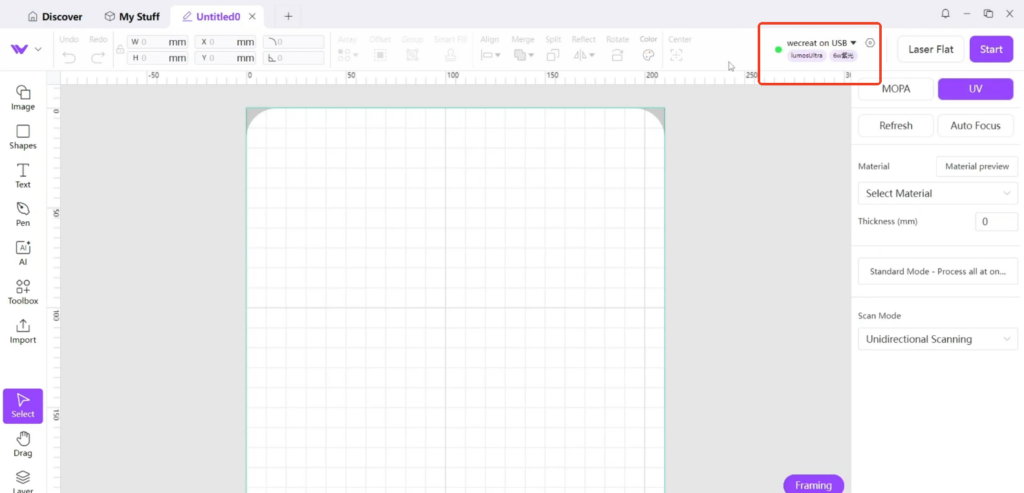
- The software should automatically detect your Lumos Ultra in the list and click it to connect.
- You will see a green dot next to the device name in the software interface — this indicates a successful connection.
Option 2: Wi-Fi Connection
Once your machine is connected via USB, you can set up Wi‑Fi for wireless operation.
Step-by-Step Instructions:
- First, connect via USB (this is required when configuring Wi‑Fi for the first time, as well as whenever you switch to a new Wi‑Fi network).
- In the WeCreat MakeIt software, go to Settings (gear icon).
- Click Wi-Fi settings.
- Select your Wi‑Fi network from the list and enter your password. Click Confirm.
- Once the machine successfully connects to your Wi‑Fi, you can disconnect the USB cable. Then, simply click on the device listed under Available Devices to connect via Wi‑Fi.
- Your Lumos Ultra will now appear as a wireless device in the software. Look for the green dot next to its name.
💡 Tip: Make sure your computer and Lumos Ultra are connected to the same 2.4GHz Wi‑Fi network. 5GHz networks are not supported.
Troubleshooting
| Issue | Possible Solution |
| No green dot / device not found | Make sure the CH340 driver is installed on your computer (you can find it in Resource/driver/win folder). Try a different USB port or a different USB cable. |
| Wi‑Fi connection fails | Ensure your Lumos Ultra and router are in the same room with no walls or metal obstacles blocking the signal. Make sure you’re using a 2.4GHz network (5GHz is not supported). Restart your router and try again. |
| Software doesn’t detect machine | Restart the machine, close and reopen the software, or restart your computer. |